Mission Planning Page
Mission Planning captures the operational intent for your system and connects it to the model. Use it to define mission objectives, map actors and interactions, and drive step-based mission sequences. For the underlying concepts (missions, actors, and subjects), see Mission Planning elements.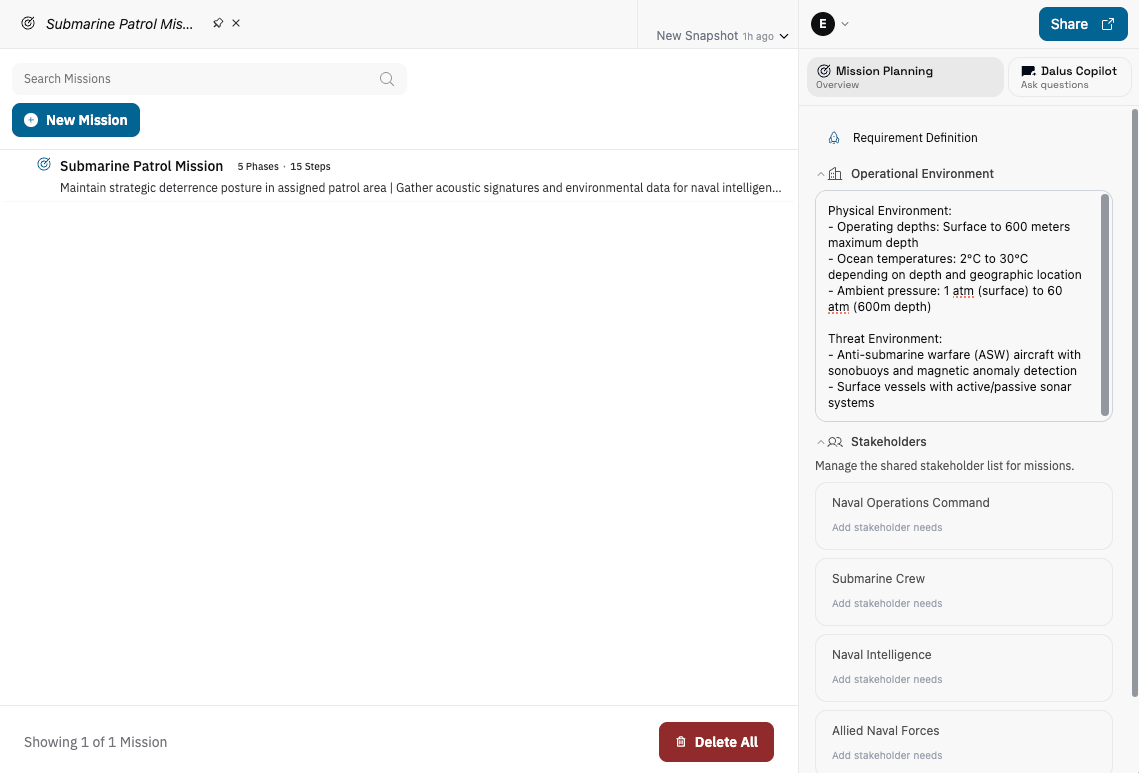
Properties
The right sidebar contains mission-wide properties:- Program phase: Set the current lifecycle phase (Requirement Definition → Disposal).
- Operational environment: Describe where and how the system operates.
- Stakeholders: Maintain the shared stakeholder list and add per-stakeholder needs (plus legacy general notes if needed).
Create a mission
- Click New Mission.
- Name the mission and open it to work on the scenario and sequence.
Mission header
Use the view modes to switch between Mission Scenario and Mission Sequence. The dropdown next to the view mode slider is used to run mission simulations (see Mission Simulation).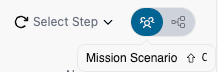
Mission Scenario
The Mission Scenario is where you capture the operational story: actors, subjects, and the interactions between them. It serves as a snapshot of all participants and the messages or flows that connect them.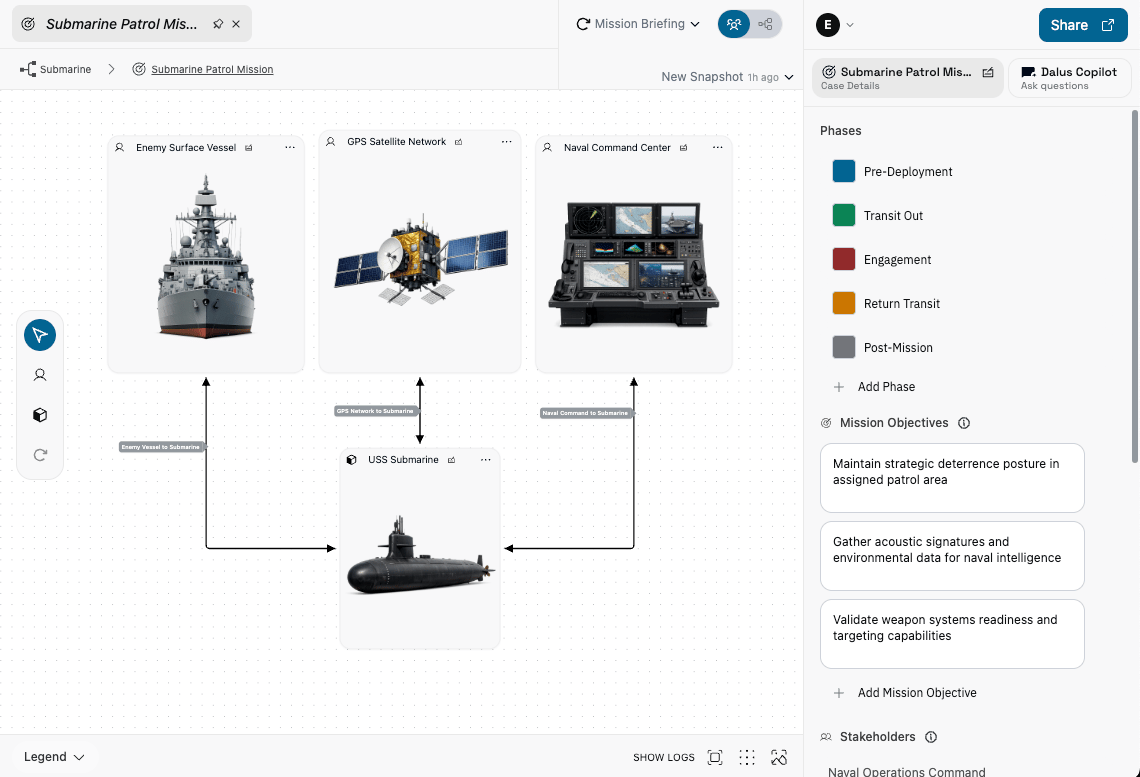
- Actors represent external agents (people, organizations, systems).
- Subjects represent the system elements involved in the mission.
- Interactions connect actors and subjects and define the flows/messages between them.
Interaction properties
Select an interaction edge to define its flows:- Add flows and set their direction/type.
- Reorder flows to control display order.
- Keep each flow tied to a variable so messages can be referenced in the sequence.
Mission properties
The mission-level properties panel controls the overall mission definition:- Phases: Define and color-code mission phases.
- Mission objectives: Capture mission goals and outcomes.
- Stakeholders: Link stakeholders to this mission.
- Mission requirements: Attach requirements tied to mission success (see Requirements Management).
- Mission description: Provide the mission narrative and scope.
Mission Sequence
The Mission Sequence (flow view) is where you define the step-by-step mission timeline.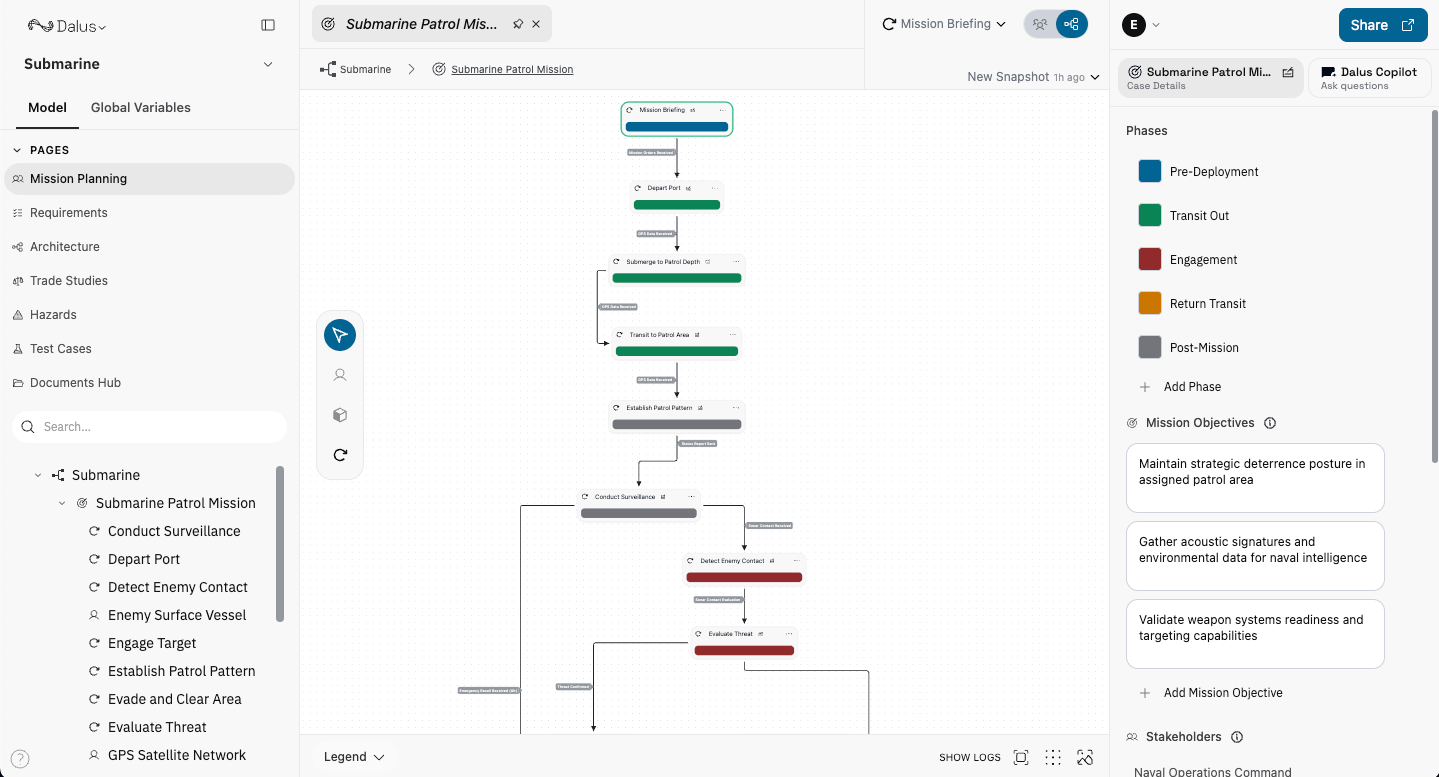
Steps
Steps represent mission actions.- Steps: Create steps and assign them to phases.
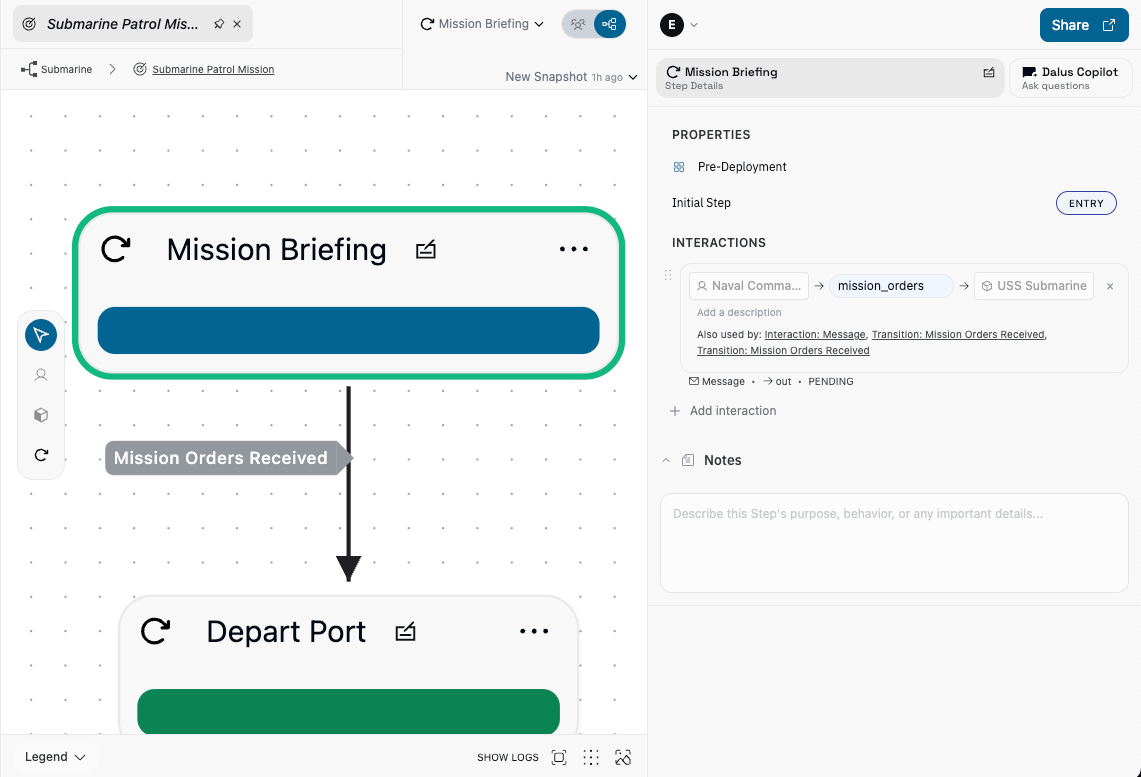
- Entry step: Mark one step as the initial step.
- Step interactions: Attach interactions (messages/flows) to each step.
- Current step: The active step shows a green border.
Transitions
Transitions capture how the mission moves between steps. Transitions can be directional (out, in, both). For the underlying mechanics, see Behavior Modeling → Transition Properties.Mission Simulation
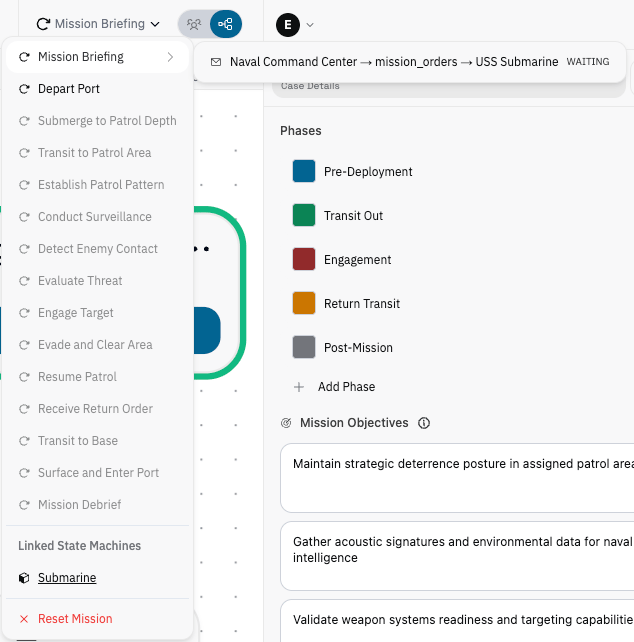
Inside sequence view, use the mission dropdown in the header to simulate execution. It shows which steps are currently reachable and lets you send the mission messages. To advance the mission, set up transition triggers between steps to listen for those messages, then send them from the dropdown so the transition fires and the sequence proceeds to the next step. You can also manually trigger the transition to the next step by clicking that step.