

Accessing Test Cases
Open the Test Cases page from the left sidebar. The page displays all test cases with their status, and you can switch between list view and timeline view.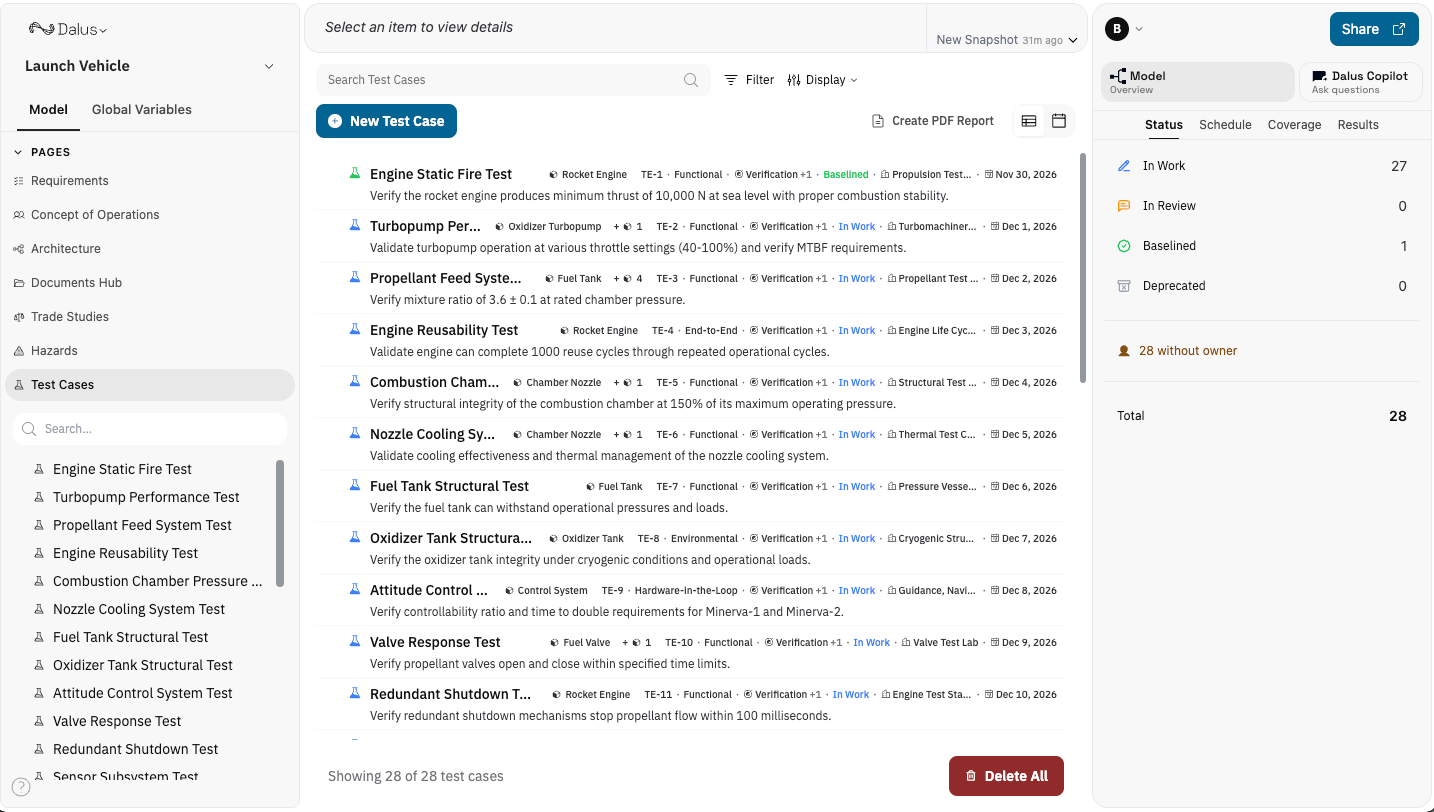
Creating a Test Case
- Click New Test Case to create a new test record.
- Enter a descriptive name (e.g., “Thermal Cycling Test” or “EMI Compliance Check”).
- Add a detailed description of the test objectives.
Test Case Properties
Status
Track execution progress: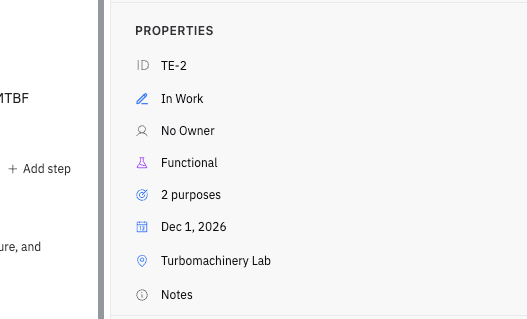
Lifecycle Status
Track the test definition maturity:Purpose
Why is this test being conducted? Select one or more:Type
What kind of test is this?Scheduling
Plan when and where tests will occur:- Date — Scheduled execution date
- End Date — For multi-day tests
- Time Window — Specific time slot (e.g., “09:00-12:00”)
- Facility — Test location or lab name
Test Procedure
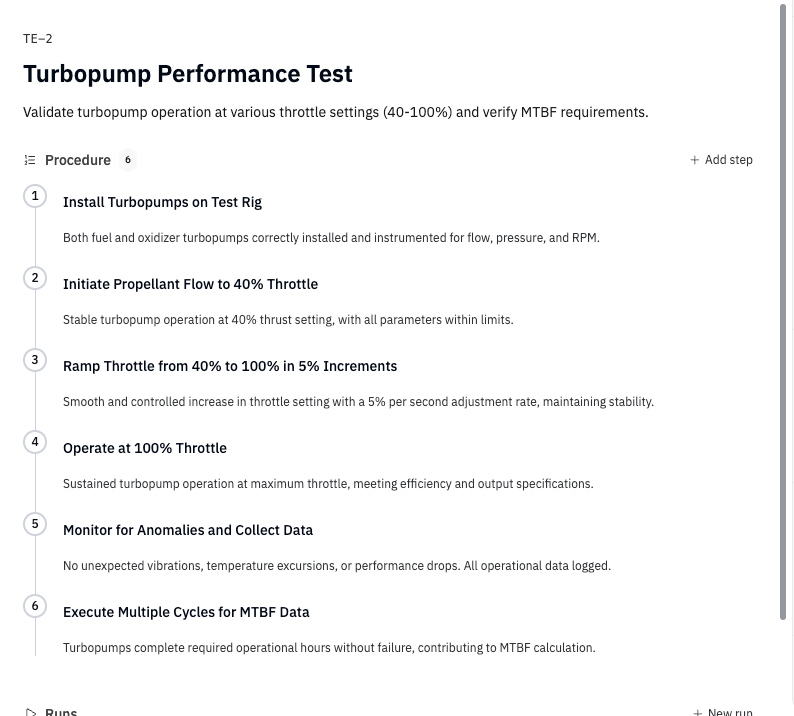
Define step-by-step instructions for executing the test.Adding Procedure Steps
- Click Add Step in the procedure section.
- Enter a clear step title describing the action.
- Add the expected result for this step.
Test Runs
Record each execution of a test case. A single test case can have multiple runs (e.g., retests, different configurations).Starting a Run
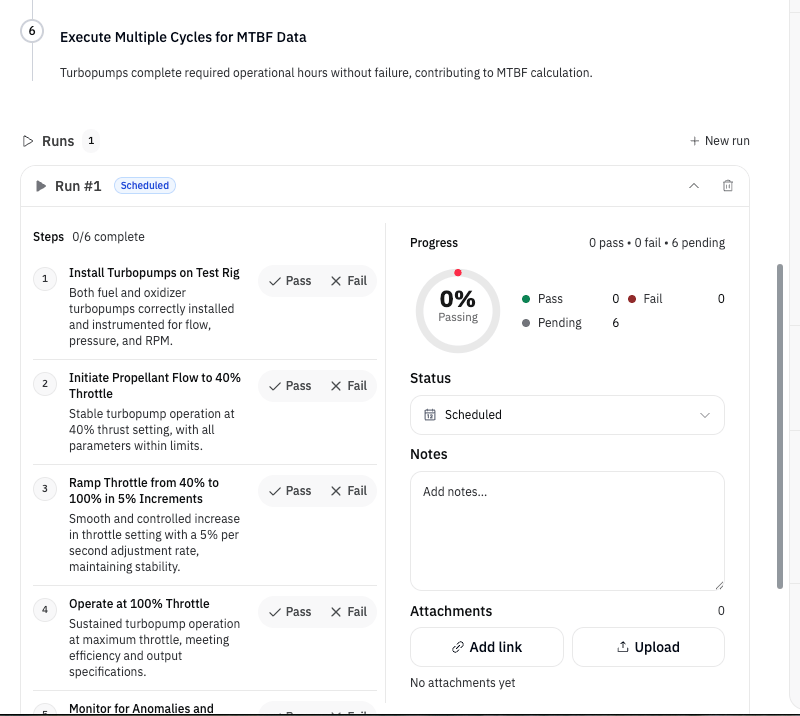
- Click + New run to create a new execution record.
- The run starts in Scheduled status.
- Execute the procedure steps, marking each as Pass or Fail.
- Update the run status as you progress.
Run Status
Recording Step Results
For each procedure step in a run:- Click Pass or Fail to record the result
- The progress indicator updates automatically showing pass/fail/pending counts
- Each step shows its title and expected result for reference
Run Attachments
Add supporting documentation to each run:- Click Add link to reference external resources
- Click Upload to attach files directly
- Attach test data, photos, logs, or anomaly reports
Traceability
Systems Under Test
Link test cases to the Parts being tested. This shows which components are covered by testing and helps identify gaps in test coverage.Requirements
Link requirements that this test verifies. For each linked requirement, add a rationale explaining how the test addresses the requirement.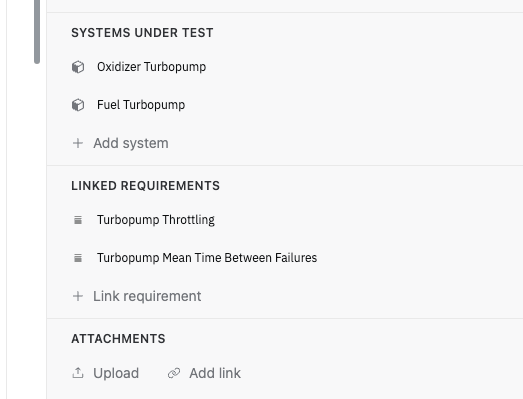
Views
List View
The default view shows test cases as a sortable, filterable list with:- Test case ID and name
- Status badges
- Type and purpose
- Scheduled date
- Quick actions
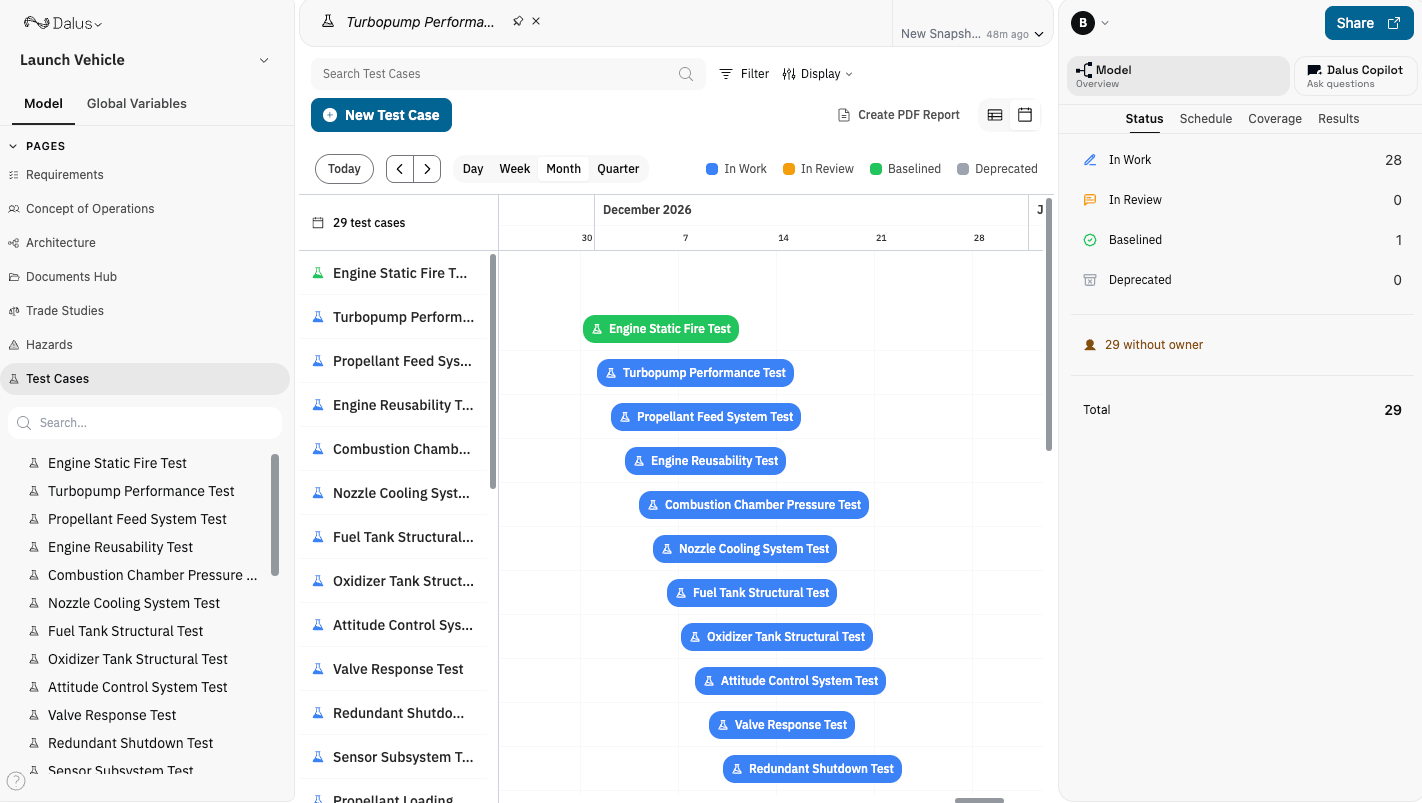
Timeline View
Switch to timeline view to see tests on a calendar:- Visual schedule of planned tests
- Multi-day tests shown as spans
- Drag to reschedule (when editing is enabled)
- Color-coded by status
Filtering and Search
Use the filter bar to narrow the list by:- Status — Planned, In Progress, Passed, Failed, Blocked
- Type — Functional, Environmental, etc.
- Purpose — Verification, Validation, etc.
- Lifecycle Status — In Work, In Review, Baselined, Deprecated
- Systems — Filter by systems under test
- Date Range — Filter by scheduled date
- Facility — Filter by test location
Grouping and Sorting
Organize the test list by:- Group by: None, Status, Type, or Purpose
- Sort by: Name, Date, Status, or Type
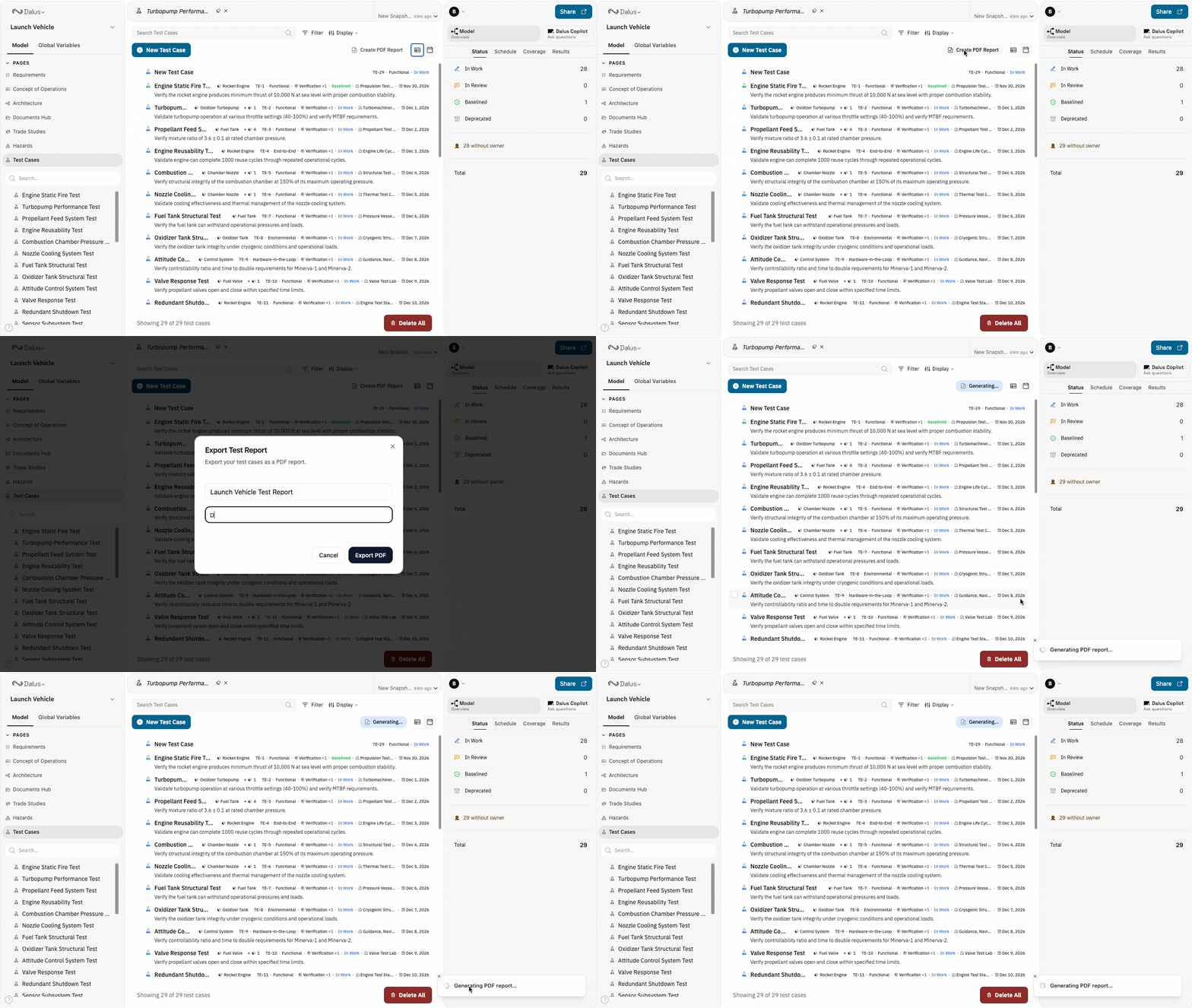
Exporting Test Reports
Generate documentation for reviews and audits:- Select test cases to include (or export all).
- Click Export Report.
- Choose export options and metadata.
- Download the generated report.
Best Practices
- Write clear objectives — Each test should have a specific, measurable goal.
- Define acceptance criteria upfront — Know what “pass” looks like before you test.
- Include expected results in procedure steps — Make it easy for anyone to execute the test and evaluate results.
- Link to requirements — Maintain traceability so you can demonstrate test coverage.
- Record everything — Attach evidence, note observations, and document any anomalies.
- Review before baselining — Use lifecycle status to control test case maturity.
Permissions
Test case management respects model permissions:
Viewers can browse test cases and runs but cannot modify them.