

Workspace Overview
The workspace is organized into three main areas: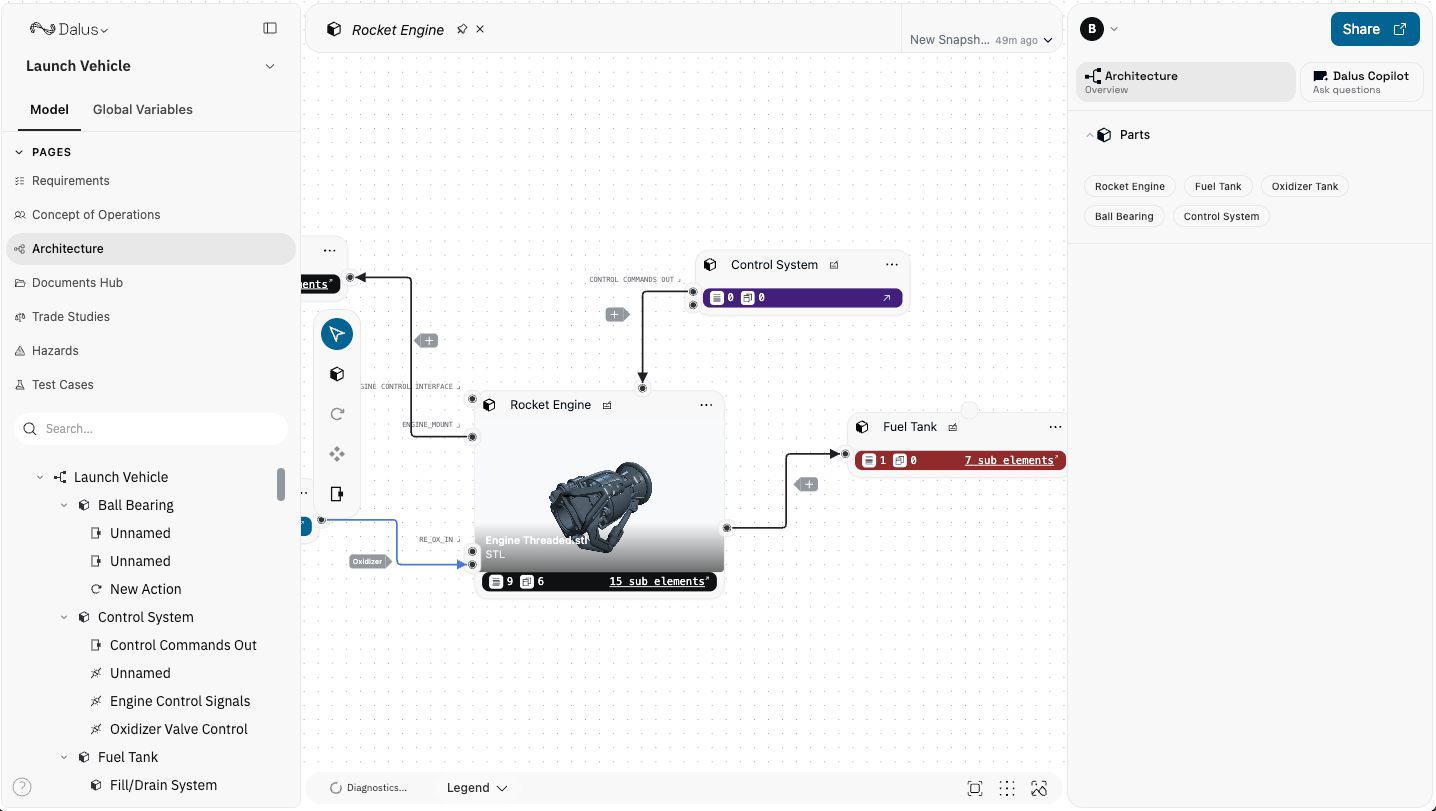
Left Sidebar
The left sidebar is your primary navigation hub.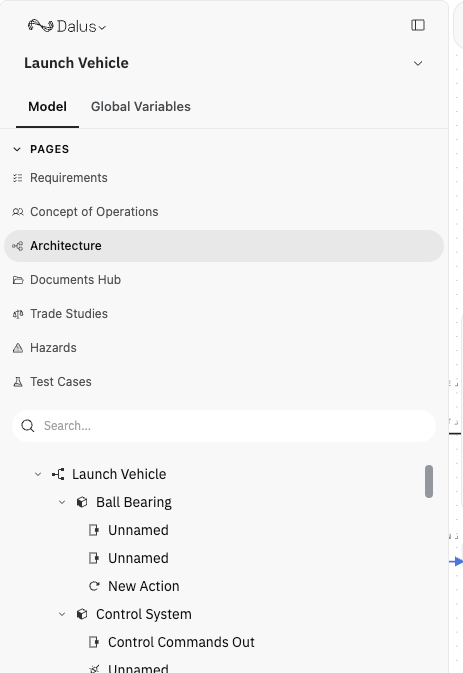
Pages
Navigate between different views of your model:- Requirements — Manage and trace requirements
- Mission Planning — Define operational scenarios
- Architecture — Build structural and behavioral models
- Documents Hub — Access and manage documentation
- Trade Studies — Compare design alternatives
- Hazards — Track and analyze system hazards
- Test Cases — Define and manage test cases
Element Tree
Below the pages, the hierarchical element tree displays all parts, interfaces, and other elements in your model. Expand nodes to explore the structure and double-click to open elements on the canvas.Search
Use the search bar to quickly find elements by name across your entire model.Central Canvas
The main workspace where modeling takes place.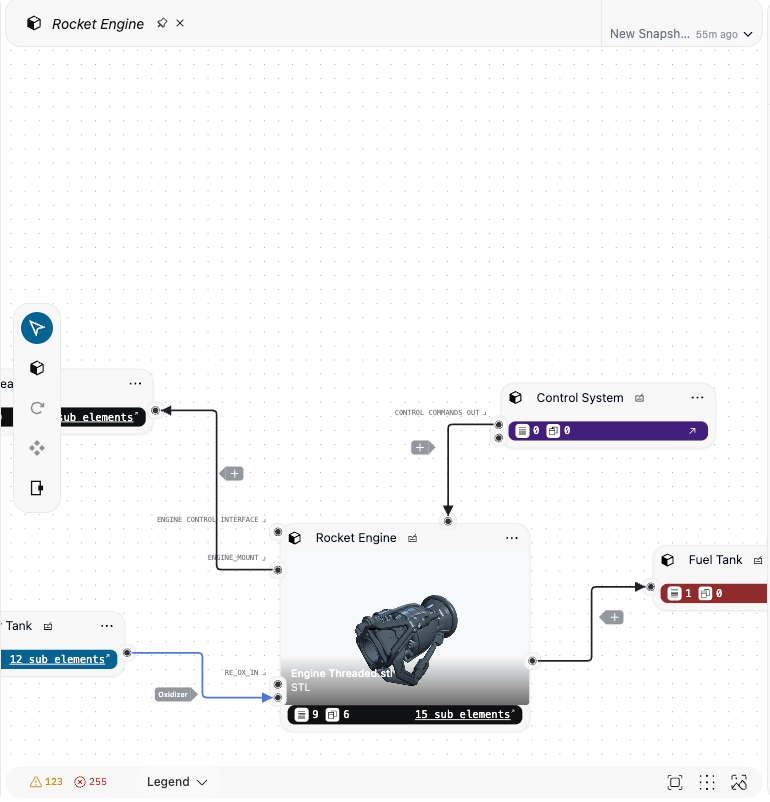
Tab Bar
Open elements appear as tabs at the top. Click tabs to switch between them, or use the pin icon to keep frequently used elements open. The snapshot indicator shows when the model was last saved.Modeling Toolbar
The vertical toolbar on the left provides quick access to:- Selection and navigation tools
- Part creation
- Interface and connection tools
- Additional modeling options
Canvas Controls
At the bottom of the canvas:- Diagnostics — View model validation and issues
- Legend — Show/hide the diagram legend
- Zoom and fit controls — Adjust the canvas view

Right Sidebar
The right sidebar provides context and AI assistance.Architecture Overview
When on the Architecture page, this panel shows a quick overview of parts in your current view for fast navigation.Dalus Copilot
Switch to the Copilot tab to ask questions about your model, get suggestions, and use AI-powered assistance for modeling tasks.Share
Click the Share button to invite collaborators or manage access permissions.Tips
- Collapse sidebars — Hover over collapsed sidebars to temporarily expand them
- Use keyboard shortcuts — Press
Cmd/Ctrl + Kfor global search - Pin important tabs — Keep frequently accessed elements pinned for quick access
- Check diagnostics — Review the diagnostics panel regularly for model issues