

Importing Requirements
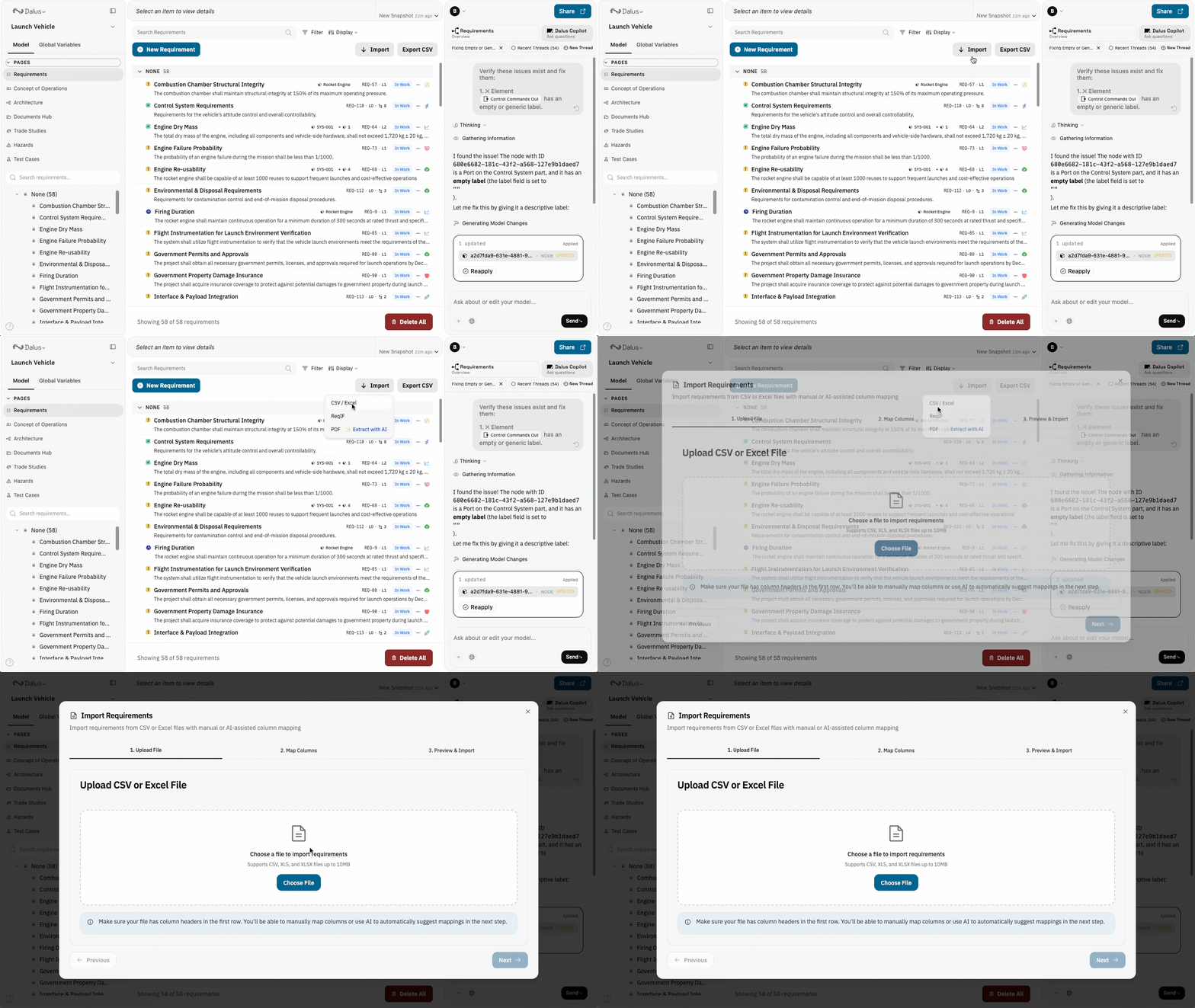
Bring existing requirements into Dalus from spreadsheets, standard interchange formats, or PDF documents.Import from CSV / Excel
Import requirements directly from spreadsheet files. Dalus supports.csv, .xlsx, and .xls formats.
- Navigate to the Requirements page in your model
- Click Import and select CSV / Excel
- Upload your spreadsheet file
- If your Excel file has multiple sheets, select which sheet to import
- Map your spreadsheet columns to Dalus fields:
- Review the preview showing how requirements will be imported
- Click Confirm to add requirements to your model
Import from ReqIF
Import requirements using the Requirements Interchange Format (ReqIF), the standard exchange format for requirements management tools.- Navigate to the Requirements page in your model
- Click Import and select ReqIF
- Upload your
.reqiffile - Dalus parses the file and extracts requirements with their attributes
- Review the imported requirements
- Click Confirm to add them to your model
- IBM DOORS
- Polarion
- Siemens Teamcenter
- Other ReqIF-compliant tools
Import from PDF (AI Extraction)
Dalus can extract structured requirements from PDF documents using AI. This is helpful when working with:- Specification documents
- Standards and compliance documents
- Legacy requirements not in structured formats
- Navigate to the Requirements page in your model
- Click Import and select PDF
- Upload your PDF document (max 50MB)
- Dalus processes the document and extracts requirements—this may take a moment for large files
- Review the extracted requirements:
- Requirement text and identifiers
- Priority levels (when detected)
- Section hierarchy
- Edit any entries that need correction
- Click Confirm to add requirements to your model
AI extraction works best with clearly formatted documents—numbered requirement lists, tables, or documents following standard templates like DOORs exports produce the most accurate results.
Exporting Requirements
Export your requirements for sharing with stakeholders or use in external tools.Export to CSV
Export all requirements to a CSV file that can be opened in Excel, Google Sheets, or imported into other tools.- Navigate to the Requirements page in your model
- Click Export
- A
requirements.csvfile downloads to your machine
Best Practices
- Clean your data before importing — Remove empty rows, fix formatting issues, and ensure consistent column headers in your source files.
- Use ReqIF for tool migrations — When moving from another requirements management tool, ReqIF preserves the most structure and metadata.
- Review AI extractions carefully — PDF extraction is powerful but may misidentify requirement boundaries in complex documents. Always review before confirming.
- Export regularly — Create CSV backups before major changes to your requirements. This gives you a restore point if needed.
- Maintain ID consistency — If your requirements have existing IDs from another system, map them to the Name field to preserve traceability.
Permissions
Import and export actions follow model permissions:
Viewers can export requirements but cannot import or modify them.