> ## Documentation Index
> Fetch the complete documentation index at: https://docs.dalus.io/llms.txt
> Use this file to discover all available pages before exploring further.
# Requirements Management
> Establish a repeatable workflow for capturing, assigning, and verifying requirements inside Dalus.
Effective requirements management keeps your system architecture, behavior models, and verification activities aligned. This guide explains how Dalus ties requirement capture, assignment, and validation into a single traceable flow.
## Requirements Management Page
The Requirements Management page brings capture, organization, and review tools into a single workspace. Requirements are presented as compact pills for quick scanning, and any record can be opened in a dedicated editor tab when deeper editing is required.
 ### Create and open requirements
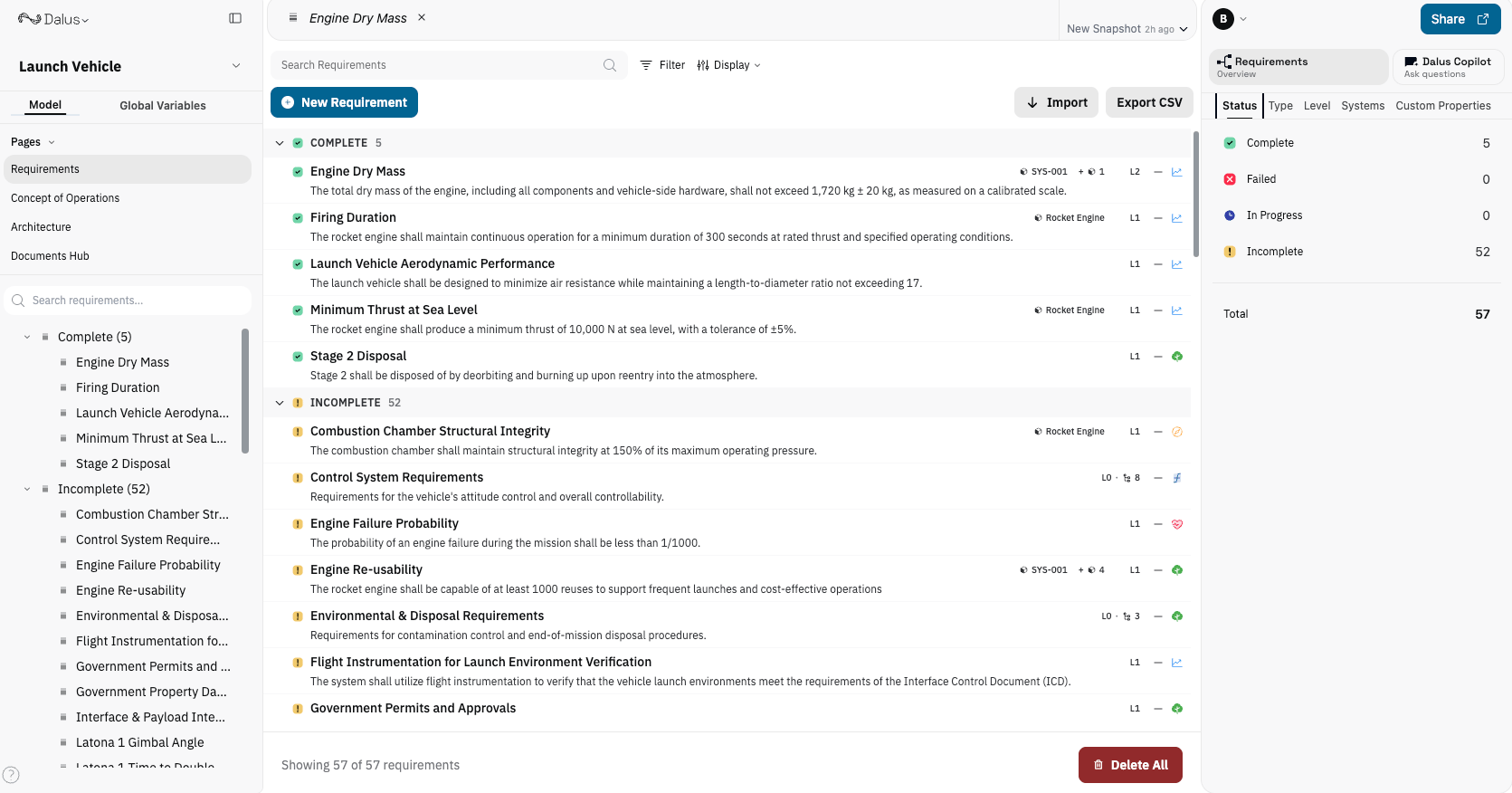
Select `New Requirement` to add a record to the table, supply a name and statement, and double-click (or choose **Open in New Tab**) to work in the full editor. To reuse an existing branch, highlight one or more pills with Shift or Cmd/Ctrl, then copy and paste to duplicate the requirement together with its sub-requirements, tags, constraints, and assignments.
### Create and open requirements
Select `New Requirement` to add a record to the table, supply a name and statement, and double-click (or choose **Open in New Tab**) to work in the full editor. To reuse an existing branch, highlight one or more pills with Shift or Cmd/Ctrl, then copy and paste to duplicate the requirement together with its sub-requirements, tags, constraints, and assignments.
 ### Edit statements, attributes, and custom properties
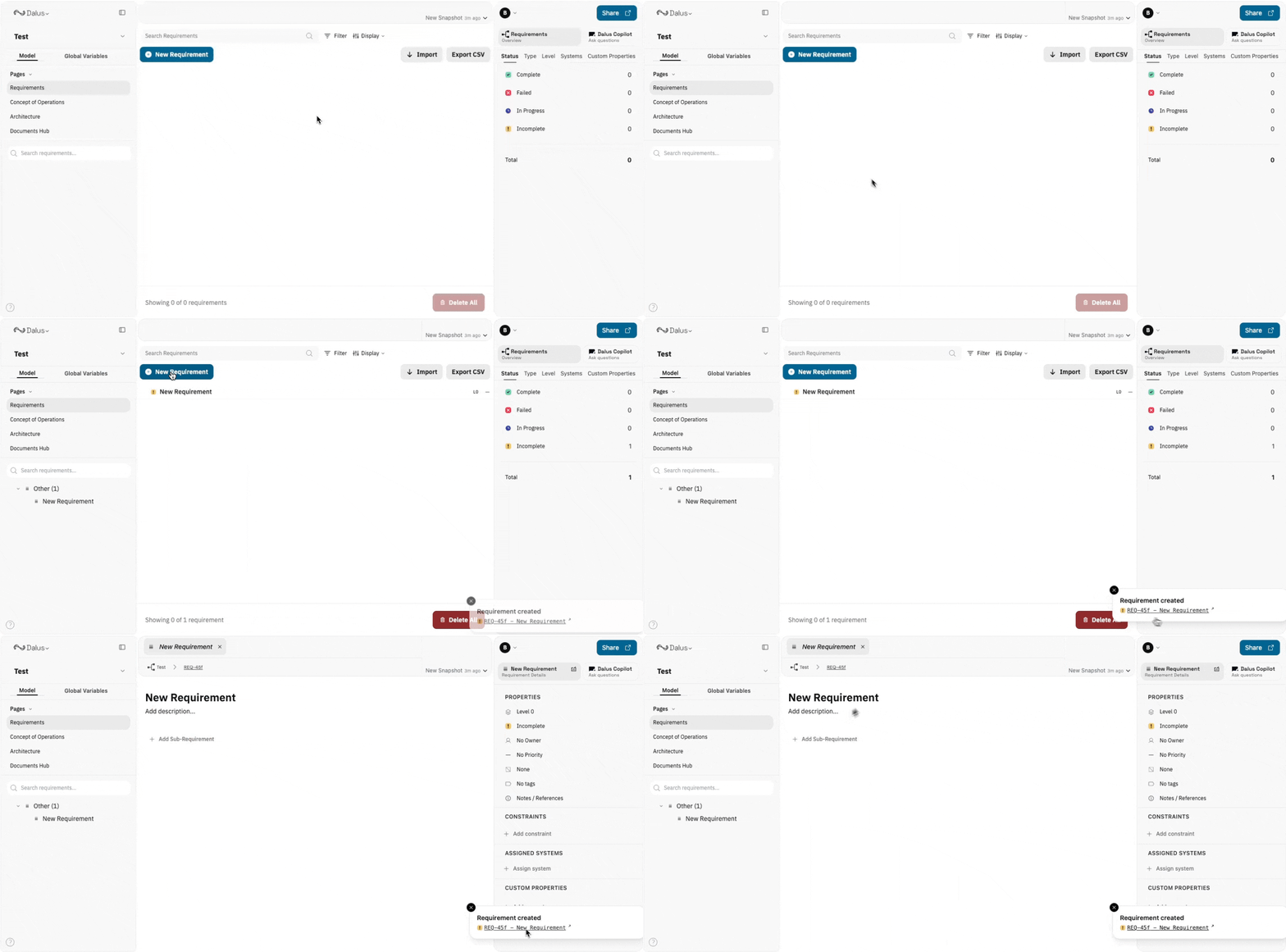
Open a requirement to refine the statement and adjust its supporting data from the right-hand panel or the pill menu. Update owner, priority, status, tags, and references, capture a brief note, or document the files and page numbers that justify the requirement. When additional metadata is needed, create custom properties, expose them as table columns, and decide whether they remain personal or shared defaults.
### Edit statements, attributes, and custom properties
Open a requirement to refine the statement and adjust its supporting data from the right-hand panel or the pill menu. Update owner, priority, status, tags, and references, capture a brief note, or document the files and page numbers that justify the requirement. When additional metadata is needed, create custom properties, expose them as table columns, and decide whether they remain personal or shared defaults.
 ### Assign systems or parts
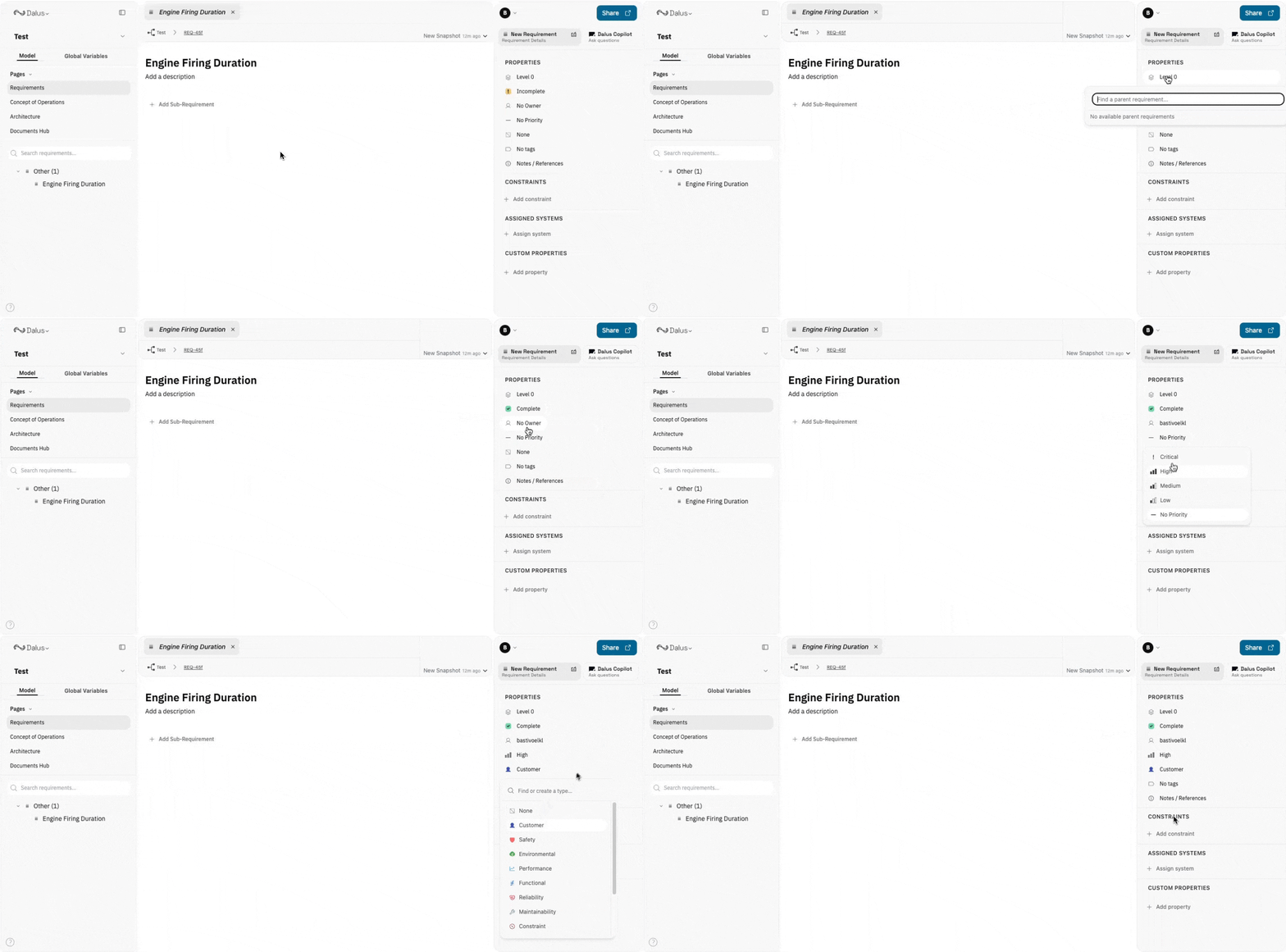
The **Assigned Systems** menu—available on each pill, in the detail view, and within the assignment column—links a requirement to the responsible parts or subsystems. Selections appear as badges for clear ownership, and matching links surface inside the part detail panes to maintain traceability.
### Assign systems or parts
The **Assigned Systems** menu—available on each pill, in the detail view, and within the assignment column—links a requirement to the responsible parts or subsystems. Selections appear as badges for clear ownership, and matching links surface inside the part detail panes to maintain traceability.
 ### Build and review requirement hierarchies
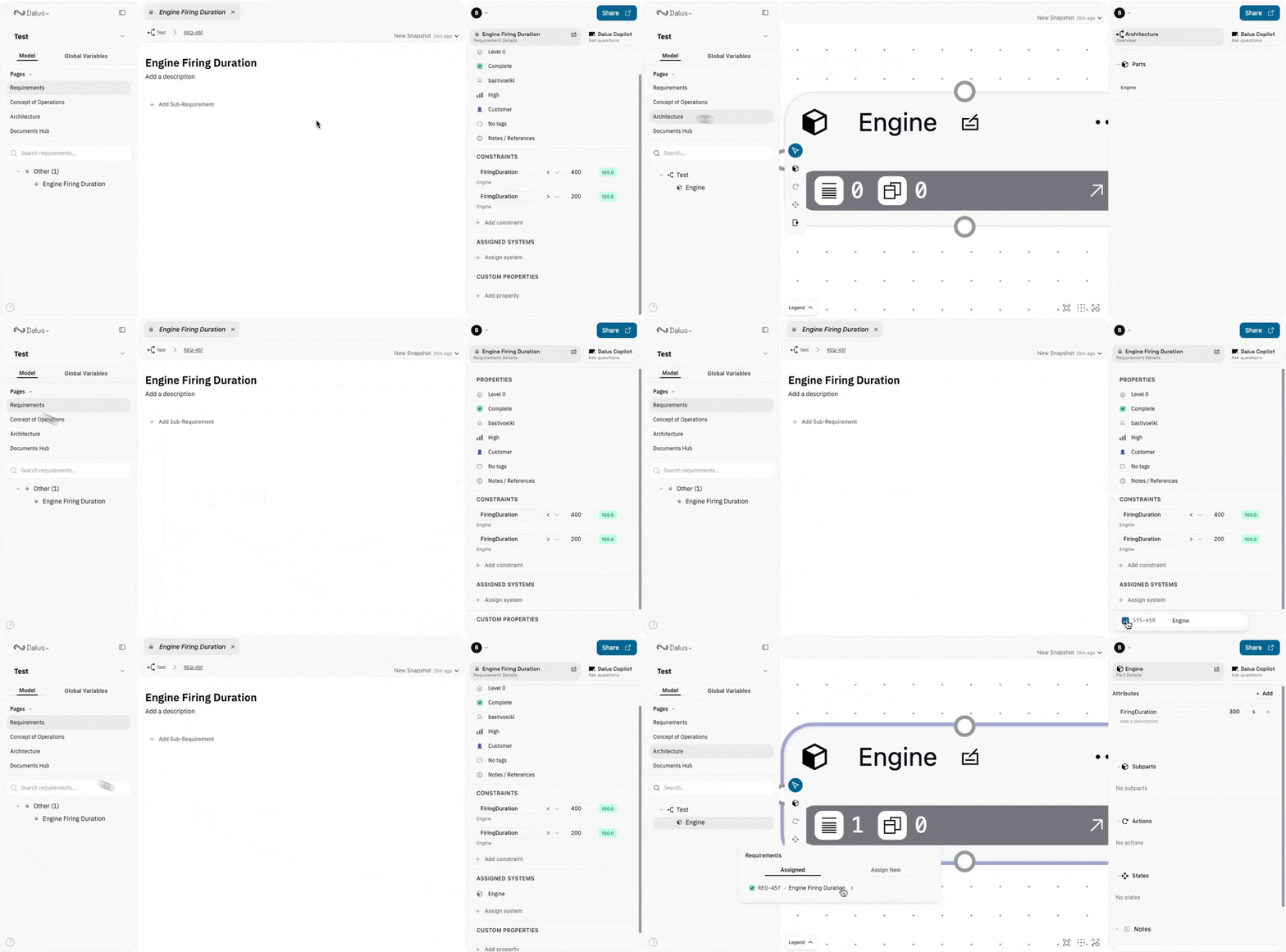
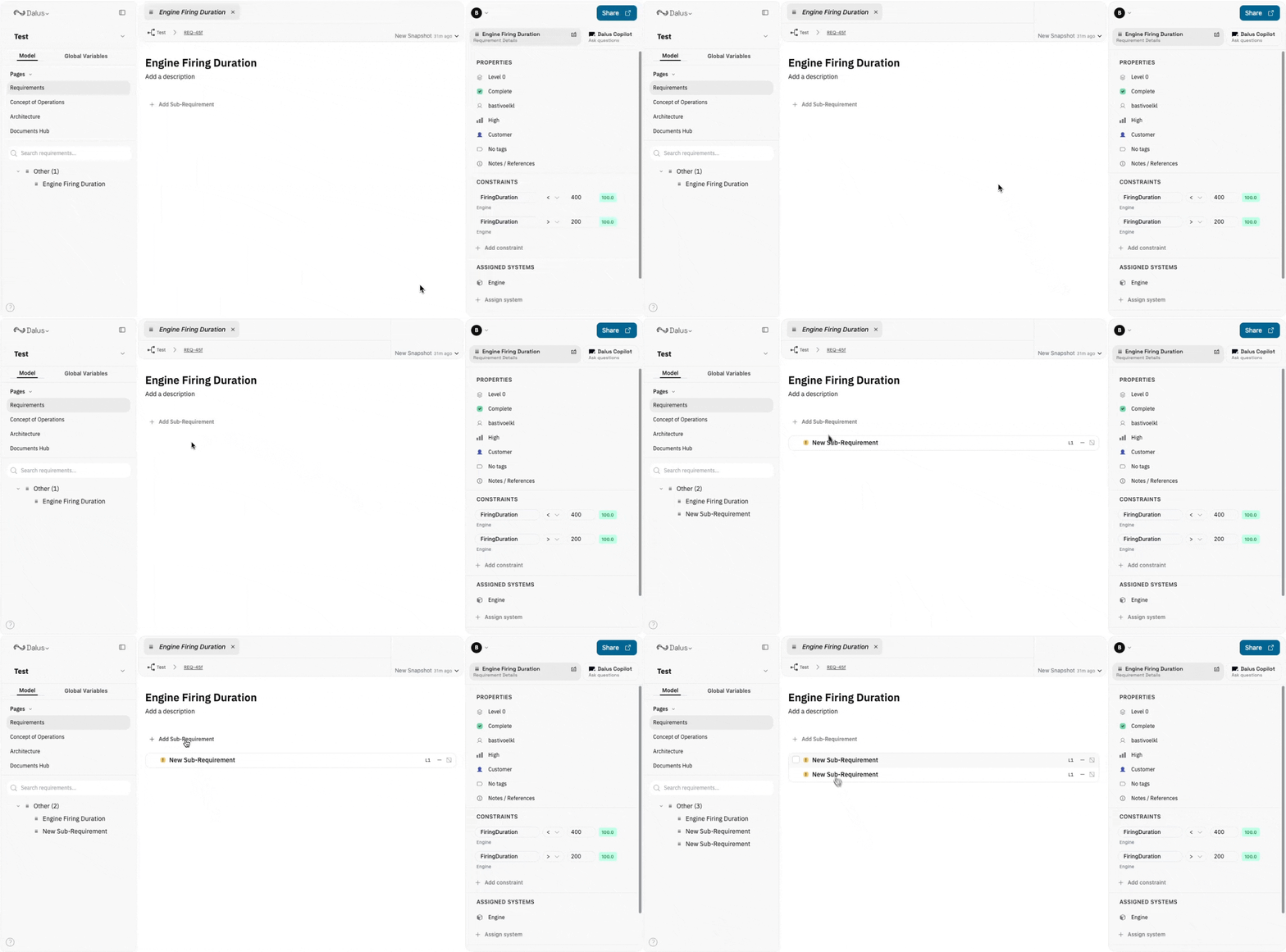
Select **Add Sub-Requirement** to divide a large statement into manageable items. Levels increment automatically, and the list can switch to a hierarchical layout so you can expand, collapse, or re-parent entries via the **Parent Requirement** menu.
### Build and review requirement hierarchies
Select **Add Sub-Requirement** to divide a large statement into manageable items. Levels increment automatically, and the list can switch to a hierarchical layout so you can expand, collapse, or re-parent entries via the **Parent Requirement** menu.
 ### Capture constraints and keep status current
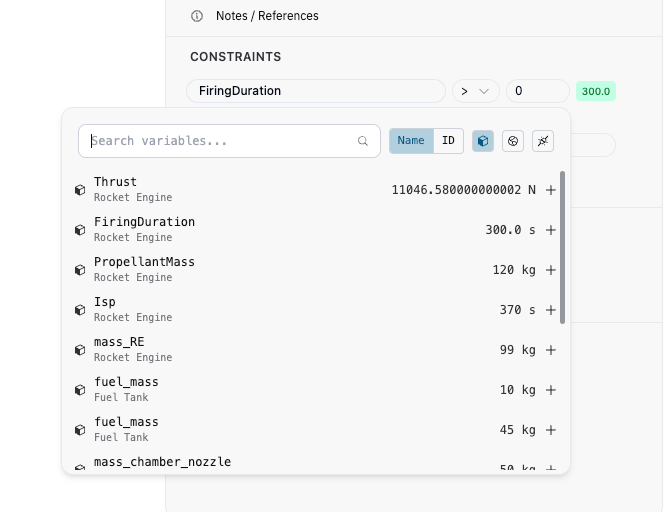
Constraints connect a requirement to live model values. Choose a variable, define the comparison, and provide the limit; Dalus monitors the data and updates the status to **Complete**, **In Progress**, or **Failed** as margins shift. If a manual review is necessary, lock the status so it remains unchanged until you release it.
### Capture constraints and keep status current
Constraints connect a requirement to live model values. Choose a variable, define the comparison, and provide the limit; Dalus monitors the data and updates the status to **Complete**, **In Progress**, or **Failed** as margins shift. If a manual review is necessary, lock the status so it remains unchanged until you release it.
 ### Add verification methods
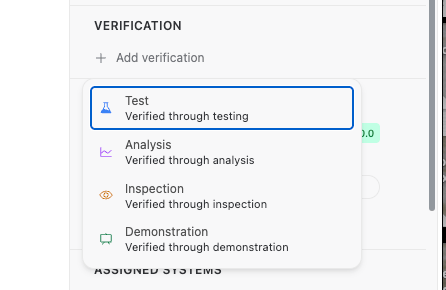
Link each requirement to one or more verification methods using the **Verification** section in the right sidebar. Select **Add verification** and choose from the standard methods:
* **Test** — Verified through testing
* **Analysis** — Verified through analysis
* **Inspection** — Verified through inspection
* **Demonstration** — Verified through demonstration
Verification assignments appear alongside the requirement and can be used to filter, group, and report on how your system will be validated. This supports traceability from requirement through to verification activity, keeping audits and reviews straightforward.
### Add verification methods
Link each requirement to one or more verification methods using the **Verification** section in the right sidebar. Select **Add verification** and choose from the standard methods:
* **Test** — Verified through testing
* **Analysis** — Verified through analysis
* **Inspection** — Verified through inspection
* **Demonstration** — Verified through demonstration
Verification assignments appear alongside the requirement and can be used to filter, group, and report on how your system will be validated. This supports traceability from requirement through to verification activity, keeping audits and reviews straightforward.
 ### Display requirements in different ways
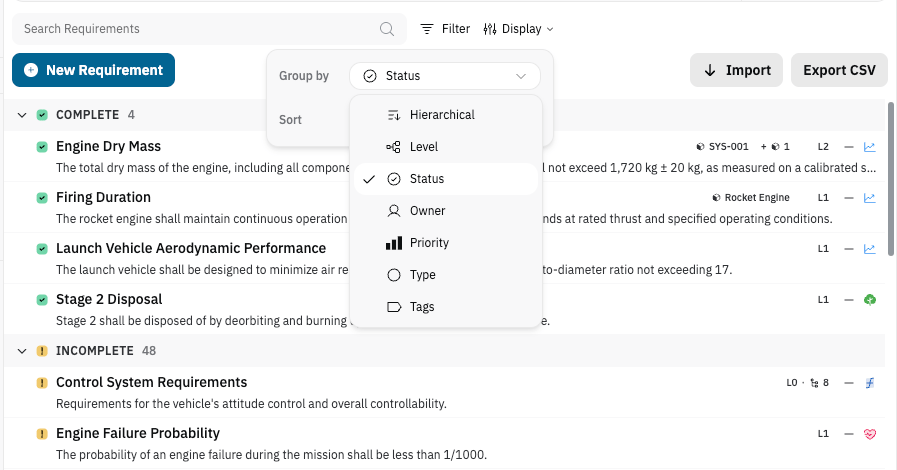
The `Display` control toggles between flat and hierarchical views, groups by level, status, type, priority, owner, or tags, and sorts by any standard or custom field (including “Last Updated”). Column visibility preferences are stored per user, so you can hide or show custom properties without altering another team member’s layout.
### Display requirements in different ways
The `Display` control toggles between flat and hierarchical views, groups by level, status, type, priority, owner, or tags, and sorts by any standard or custom field (including “Last Updated”). Column visibility preferences are stored per user, so you can hide or show custom properties without altering another team member’s layout.
 ### Search and filter precisely
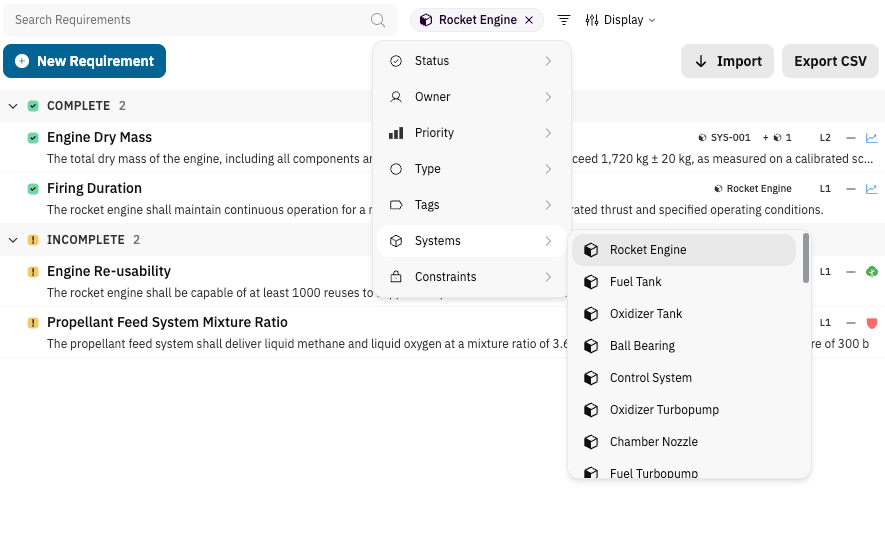
The search bar converts each term into a removable chip, allowing multiple keywords to be applied at once. The **Filter** menu provides structured options for status, owner, priority, type (standard or custom), tags, assigned systems, and constraint presence. Each active filter appears as a badge that can be removed with a single click.
### Search and filter precisely
The search bar converts each term into a removable chip, allowing multiple keywords to be applied at once. The **Filter** menu provides structured options for status, owner, priority, type (standard or custom), tags, assigned systems, and constraint presence. Each active filter appears as a badge that can be removed with a single click.
 ### Bulk actions, shortcuts, and exports
Hover a requirement to reveal selection checkboxes. Copy (`⌘/Ctrl+C`) and paste (`⌘/Ctrl+V`) duplicate complete branches, `Delete` or `Backspace` opens the confirmation dialog, and `Esc` clears the current selection. The footer reports visible, total, and selected counts. When an external report is required, `Export CSV` includes every visible column—custom properties and assignments included.
### Import requirements via Excel, ReqIF, or PDF
The `Import` menu accepts spreadsheets, ReqIF packages, and PDFs:
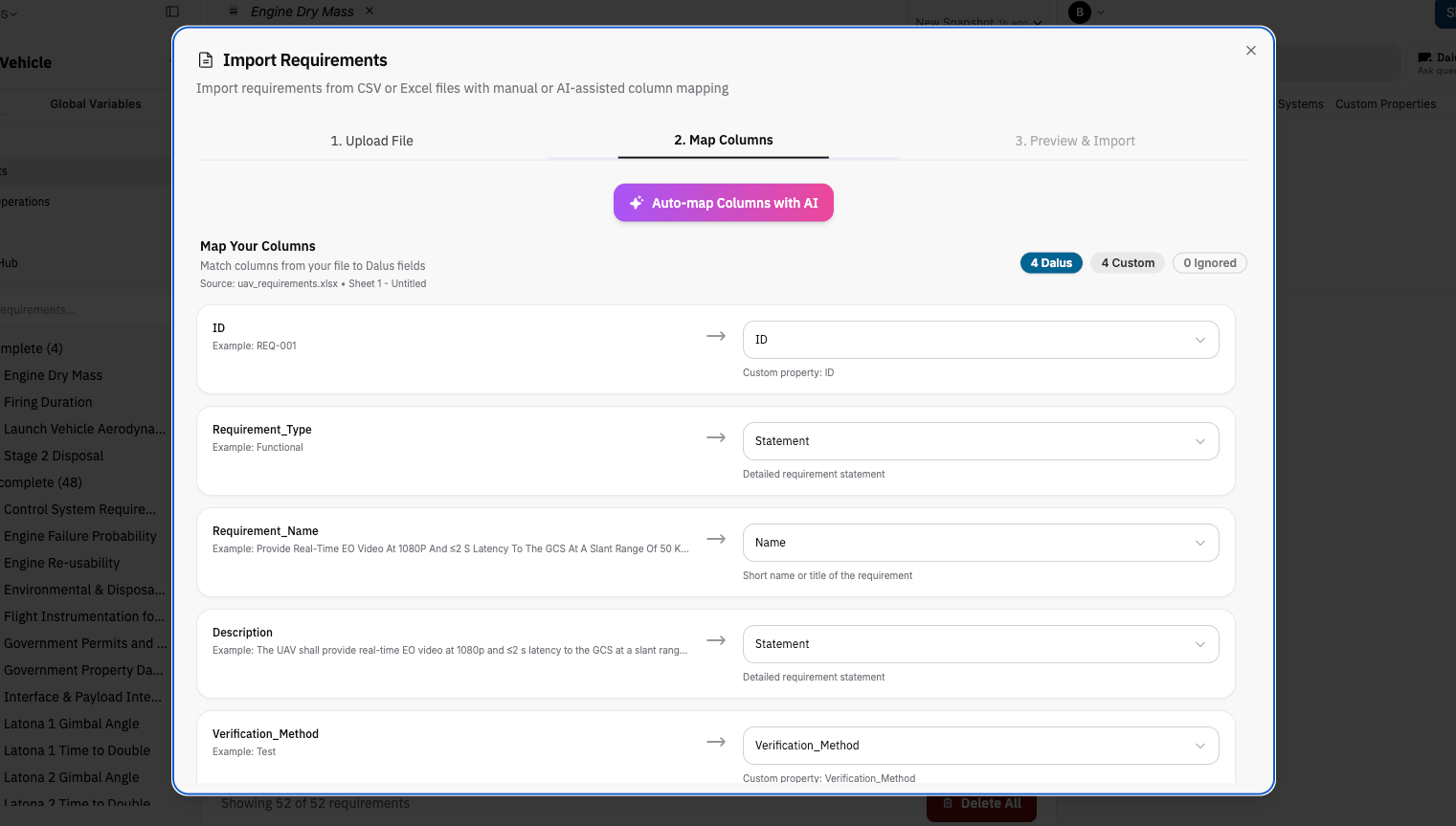
* **CSV / Excel**: Upload a workbook, select a sheet, and rely on the AI-assisted mapper to align columns with Dalus fields or create new custom properties. Review every row before importing.
* **ReqIF**: Bring data in from existing tools without recreating hierarchies manually.
* **PDF (Extract with AI)**: Submit a specification or standard, monitor the progress banner, and cancel if needed. Large documents can take up to 10 minutes, so keep the tab open until completion.
Each import displays its status and produces requirements that behave the same as manually created entries, ready for grouping, assignment, and constraint capture.
### Bulk actions, shortcuts, and exports
Hover a requirement to reveal selection checkboxes. Copy (`⌘/Ctrl+C`) and paste (`⌘/Ctrl+V`) duplicate complete branches, `Delete` or `Backspace` opens the confirmation dialog, and `Esc` clears the current selection. The footer reports visible, total, and selected counts. When an external report is required, `Export CSV` includes every visible column—custom properties and assignments included.
### Import requirements via Excel, ReqIF, or PDF
The `Import` menu accepts spreadsheets, ReqIF packages, and PDFs:
* **CSV / Excel**: Upload a workbook, select a sheet, and rely on the AI-assisted mapper to align columns with Dalus fields or create new custom properties. Review every row before importing.
* **ReqIF**: Bring data in from existing tools without recreating hierarchies manually.
* **PDF (Extract with AI)**: Submit a specification or standard, monitor the progress banner, and cancel if needed. Large documents can take up to 10 minutes, so keep the tab open until completion.
Each import displays its status and produces requirements that behave the same as manually created entries, ready for grouping, assignment, and constraint capture.
 Need deeper guidance for a specific project? Share your use case with the Dalus team and we can help design a tailored workflow or template.
## Use AI for Requirements
Accelerate every phase of your requirements workflow with Dalus AI. Capture fresh statements, improve coverage, and keep every requirement tied back to the right model elements.
Need deeper guidance for a specific project? Share your use case with the Dalus team and we can help design a tailored workflow or template.
## Use AI for Requirements
Accelerate every phase of your requirements workflow with Dalus AI. Capture fresh statements, improve coverage, and keep every requirement tied back to the right model elements.
 ### Requirements Creation & Management
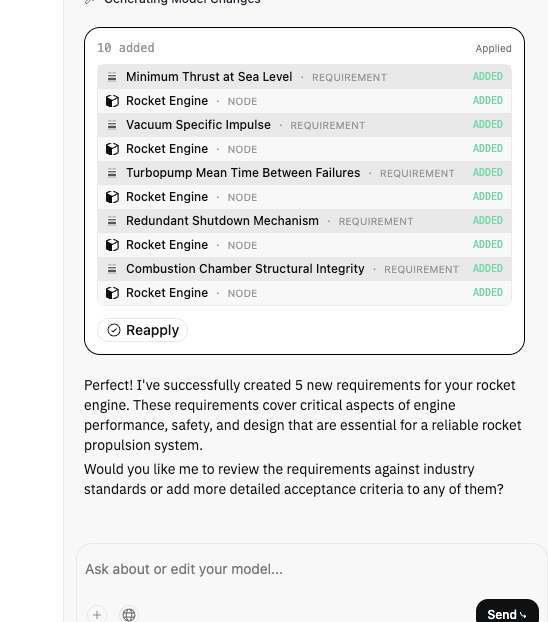
* Draft requirements from short system prompts
* Extract requirements from uploaded specifications, PDFs, or standards
* Build structured parent/child hierarchies without switching views
* Categorize requirements by customer, safety, performance, interface, design, or any custom taxonomy
* Track progress through stages such as Draft, Active, Verified, or Rejected
### Requirements Quality & Analysis
* Refine statements so they remain specific, measurable, achievable, relevant, and verifiable
* Identify coverage gaps before reviews begin
* Detect conflicting or overlapping requirements
* Recommend acceptance criteria and verification approaches
### Model Integration
* Associate requirements with the elements or subsystems responsible for them
* Trace those links throughout the architecture to ensure complete coverage
* Attach quantitative constraints that keep variables within defined limits
* Generate model elements directly from requirement statements when additional structure is needed
### Documentation & Reporting
* Summarize requirements by category, status, owner, or assignment
* Produce matrices and reports in seconds for reviews or audits
* Cross-reference requirements with uploaded standards and compliance documents to remain inspection-ready
### Requirements Creation & Management
* Draft requirements from short system prompts
* Extract requirements from uploaded specifications, PDFs, or standards
* Build structured parent/child hierarchies without switching views
* Categorize requirements by customer, safety, performance, interface, design, or any custom taxonomy
* Track progress through stages such as Draft, Active, Verified, or Rejected
### Requirements Quality & Analysis
* Refine statements so they remain specific, measurable, achievable, relevant, and verifiable
* Identify coverage gaps before reviews begin
* Detect conflicting or overlapping requirements
* Recommend acceptance criteria and verification approaches
### Model Integration
* Associate requirements with the elements or subsystems responsible for them
* Trace those links throughout the architecture to ensure complete coverage
* Attach quantitative constraints that keep variables within defined limits
* Generate model elements directly from requirement statements when additional structure is needed
### Documentation & Reporting
* Summarize requirements by category, status, owner, or assignment
* Produce matrices and reports in seconds for reviews or audits
* Cross-reference requirements with uploaded standards and compliance documents to remain inspection-ready