> ## Documentation Index
> Fetch the complete documentation index at: https://docs.dalus.io/llms.txt
> Use this file to discover all available pages before exploring further.
# Documents Hub
> Upload, organize, preview, and link documents to system parts inside Dalus.
The Documents Hub is your central place to upload and organize project files. Upload documents once, then link them to the parts they describe so every team member can access the right context without leaving the model.
## Accessing the Documents Hub
Open the Documents Hub from the left sidebar by clicking the **Documents** tab.
 ## Controls
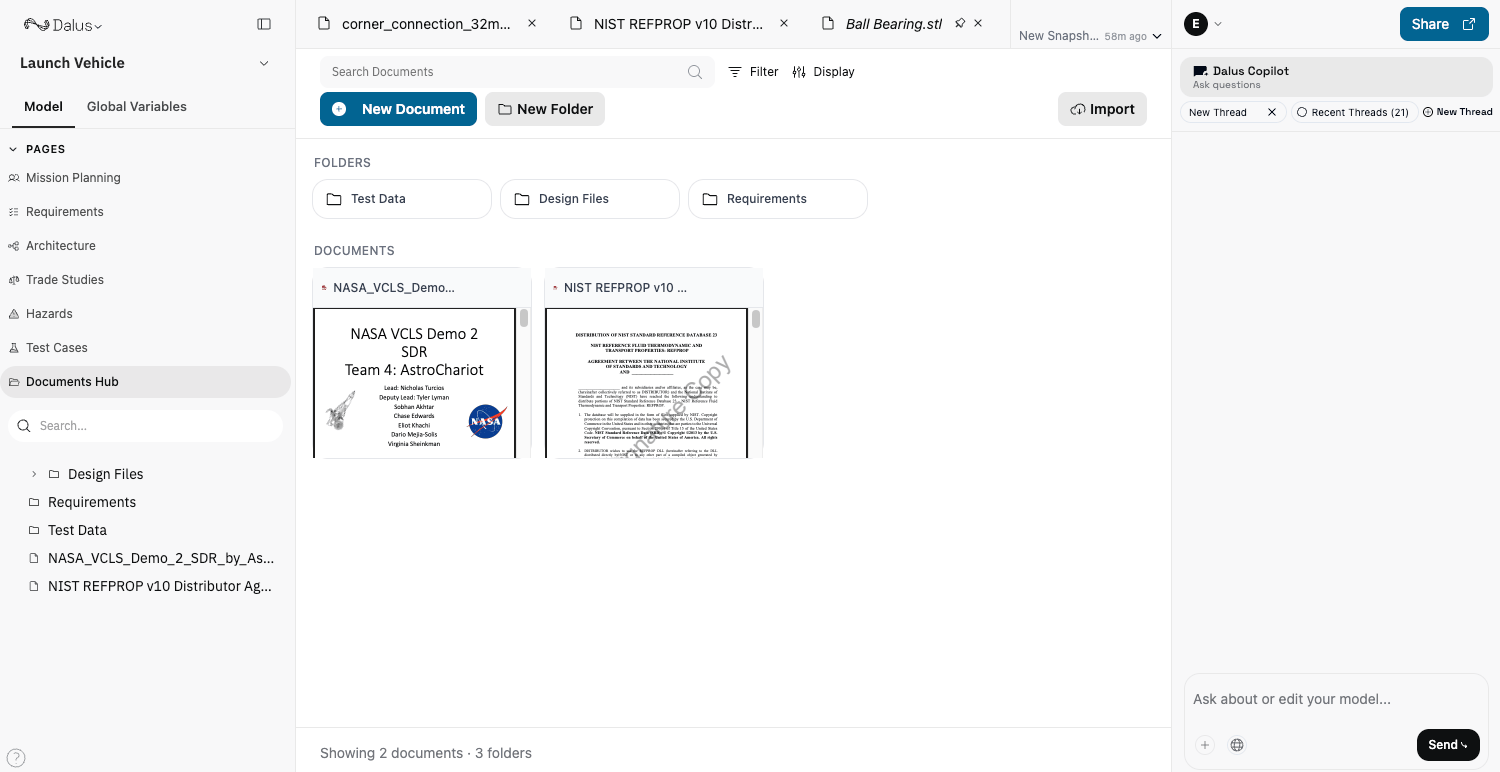
Use the top controls to manage your files:
* **Search** to find documents by name
* **New Document** (or drag and drop files and folders) to upload
* **New Folder** to create folders
* **Import** to bring in files from **OneDrive**
* **Filter** and **Display** to change what you see and how it’s shown
## Controls
Use the top controls to manage your files:
* **Search** to find documents by name
* **New Document** (or drag and drop files and folders) to upload
* **New Folder** to create folders
* **Import** to bring in files from **OneDrive**
* **Filter** and **Display** to change what you see and how it’s shown
 ## Importing from OneDrive
Use **Import → OneDrive** to bring in files and folders from your OneDrive account. OneDrive folders are read-only.
## Tabs and Breadcrumbs
When you open documents, they appear as tabs in the header so you can switch between multiple files. The breadcrumb shows where you are in the Documents Hub (folders and the currently selected document).
## Importing from OneDrive
Use **Import → OneDrive** to bring in files and folders from your OneDrive account. OneDrive folders are read-only.
## Tabs and Breadcrumbs
When you open documents, they appear as tabs in the header so you can switch between multiple files. The breadcrumb shows where you are in the Documents Hub (folders and the currently selected document).
 ## Menus
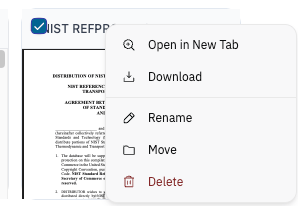
Use the context menu (right-click) or the **⋮** menu for actions.
## Menus
Use the context menu (right-click) or the **⋮** menu for actions.
 ## Bulk Actions
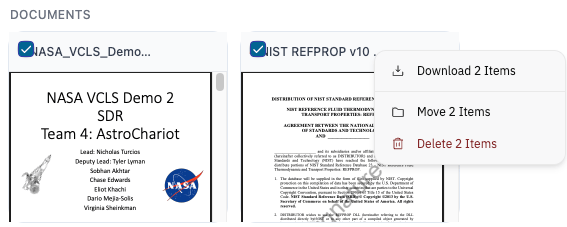
Select multiple items using checkboxes to access bulk actions.
## Bulk Actions
Select multiple items using checkboxes to access bulk actions.
 ## Linking Documents to Parts
Documents become most valuable when connected to the system components they describe.
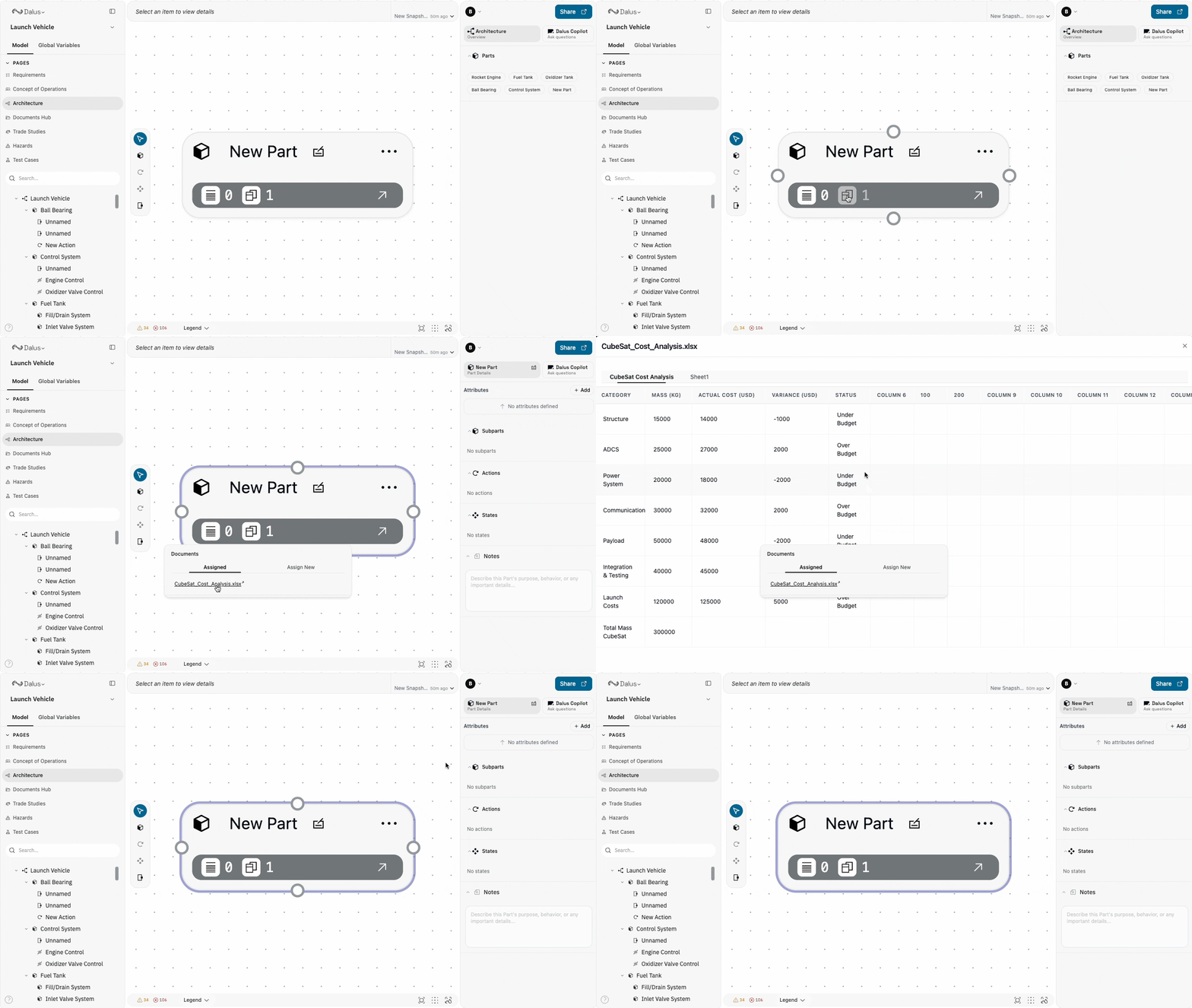
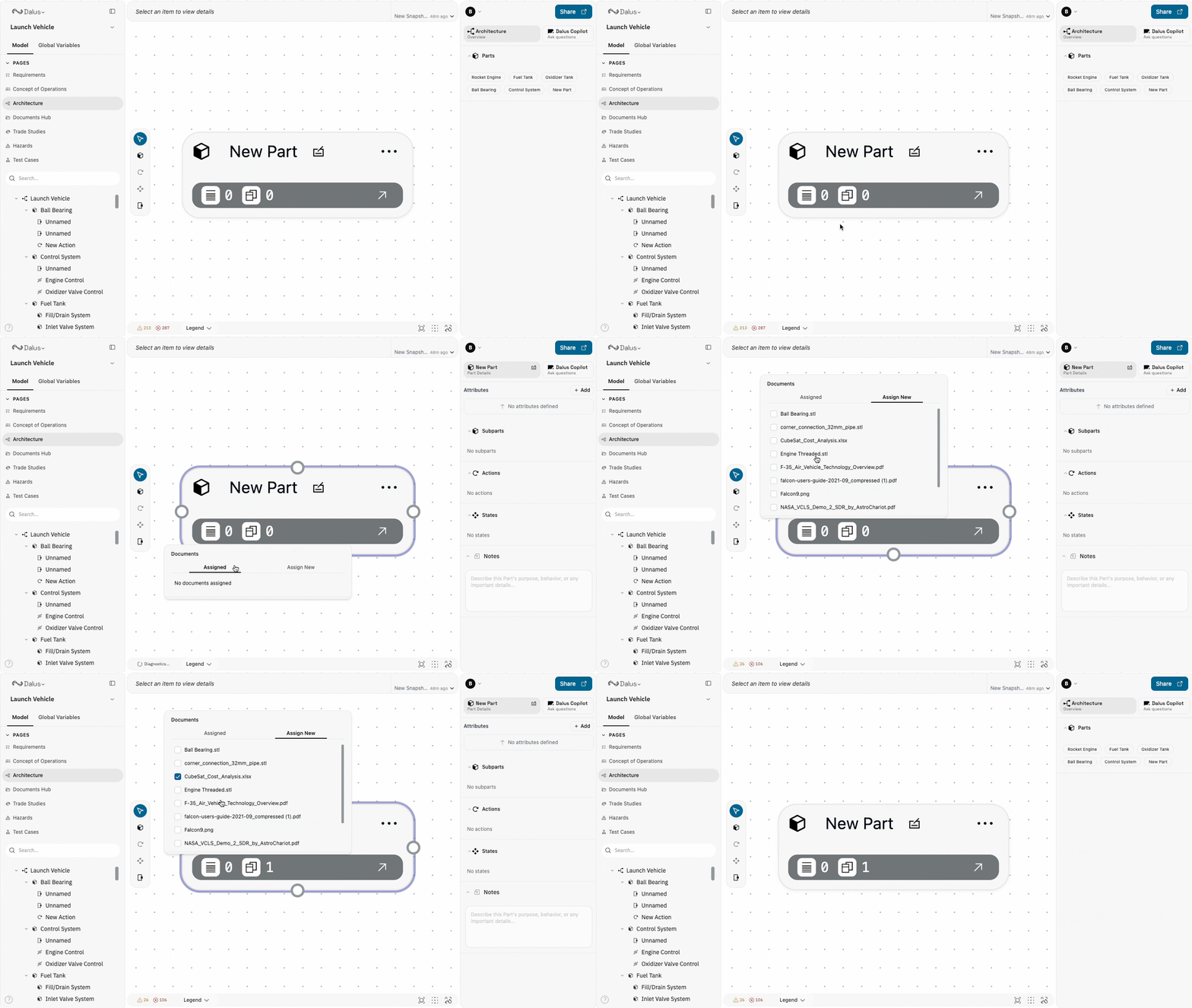
1. Click the **Documents** icon on any Part node in the canvas.
2. In the popover, switch to the **Assign new** tab.
3. Select or deselect documents using the checkboxes.
## Linking Documents to Parts
Documents become most valuable when connected to the system components they describe.
1. Click the **Documents** icon on any Part node in the canvas.
2. In the popover, switch to the **Assign new** tab.
3. Select or deselect documents using the checkboxes.
 ## Viewing Assigned Documents
Once documents are linked to a part:
* The **Assigned** tab in the Properties panel lists them with preview thumbnails.
* Click any document to open the full preview.
* Uncheck a document in the **Assign** tab to remove the link without deleting the file.
## Viewing Assigned Documents
Once documents are linked to a part:
* The **Assigned** tab in the Properties panel lists them with preview thumbnails.
* Click any document to open the full preview.
* Uncheck a document in the **Assign** tab to remove the link without deleting the file.